

Did you just get a new laptop? Congratulations! Whether you’re upgrading to the latest model or switching to the other side, there are important precautions you should take before getting rid of your old Mac. This article covers ten essential tips that you should follow before selling or giving away your old Mac. From backing up your data to removing your Mac from your Apple account completely, we’ll provide you with step-by-step instructions and tips to ensure a safe and smooth transition.
1. Backup your data
The first and most important step that you should take before switching to a new device is to backup all your data. Failing to back up your older Mac’s files can mean that you’ll lose access to important documents, photos, and files that you might need later.

Fortunately, Apple offers the best way to backup files and data on your Mac with its built-in Time Machine tool. Alternatively, you can choose to back up your important files to a local external hard disk, cloud storage services, or third-party apps. Be sure to check out our guide with the best ways to backup your Mac data.
2. Cancel or transfer AppleCare+
Macs are expensive, and many individuals opt for the AppleCare+ plan for extra peace of mind. Not only does AppleCare+ extend coverage to three years, it also provides unlimited accidental damage protection and priority support to AppleCare+ holders. However, if you’re switching to a new Mac or switching to Windows, you’ll need to either transfer your AppleCare+ plan to the new device or cancel it.

If you choose to cancel your AppleCare+ plan, you will receive a refund based on the time remaining on the plan. Alternatively, you can also transfer your AppleCare+ plan to your new Mac. You’ll also need to provide proof of purchase for your new Mac, such as a receipt or invoice, as well as the serial numbers for your old and new Macs. After verifying your information, Apple will transfer your plan to your new device. It should be noted that you will have to contact Apple Support to initiate any of these processes.
Now if you own a newer Mac that has an Apple Silicon chip or a T2 security chip, skip straight to tip number 8. This is because you can simply reset newer Macs and erase all data before giving away or selling them. However, if you have an older Mac, continue to follow the steps below to ensure your data is protected.
3. Deauthorize Apple Music and Apple TV

If you use Apple Music or Apple TV, you must deauthorize your old Mac before you sell or give it away. This will ensure that you will not end up using your device limit for these services. To revoke authorization, follow these steps:
- Open the respective app on your Mac (Apple Music or Apple TV).
- He chooses account from the menu bar.
- Next, select licenses and then Deauthorize this computer.
4. Sign out of your Apple ID, iCloud, and other accounts
Then, and one of the most important steps, is to sign out of your Apple ID and iCloud as well as other Internet accounts (such as your Google account) associated with your Mac. Leaving your Apple ID behind while signed in may cause the next user of your Mac to access your personal information, iCloud photos, and files. It should be noted that signing out of iCloud will also sign you out of the App Store, iMessage, and FaceTime.


To sign out of your Apple ID, open System Preferences (System settings If you’re running macOS Ventura or later) and navigate to File Apple ID section. From there, click Exit located in the lower left corner of the window. If you’re using macOS Mojave or earlier, go to System Preferencesand then click iCloudand finally select Exit.
When you sign out, a prompt will appear asking if you’d like to keep a copy of your calendars, keychain, and contacts. You are advised to uncheck the checkbox and click Continue to avoid leaving any data on your old Mac. Don’t worry, all data will remain in your iCloud and can be accessed on other Apple devices that have the same Apple account signed in.


In addition, it is necessary to sign out of any other Internet accounts associated with your Mac. For example, if you have used your Google account to sync mail, calendar, contacts, etc., then it is necessary to remove that account as well. To do this, go to System Preferences (System settings If you’re using macOS Ventura or later), select Internet accountschoose the account that requires removal from your Mac, then select either delete account or Remove (-) (whichever is available).
5. Sign out of FaceTime and iMessage

If for some reason you’re still signed into your Apple ID on FaceTime and Message, you’ll need to sign out manually so that the next owner of the Mac can’t access your conversations or call logs. To sign out of iMessage, open the Messages app and then select Messages from the menu bar, then select Settings → iMessage → Sign Out. Likewise, to log off confrontation timeHe chooses FaceTime → Settings → Sign Out.
6. Disable FileVault

FileVault is a macOS feature that encrypts all of the data on your Mac’s hard drive. You will need to turn off this option so that the new owner of your Mac can access the device without any issues. To turn off FileVault on macOS Ventura or later, go to System Settings -> Privacy and Security -> FileVault -> Off. On older Macs, go to System Preferences -> Security & Privacy -> FileVault -> Turn off FileVault.
7. Reset NVRAM
Apple recommends that you keep your Mac’s NVRAM (non-volatile random access memory) before you sell or give it away. To reset NVRAM, shut down your Mac first. Next, hold Command + Option + P + R keys and simultaneously press the Power button to turn on your Mac. Keep pressing the keys until you hear the startup sound twice. Resetting NVRAM clears stored settings from memory and restores any security features that may have been changed.
8. Reset your Mac and reinstall macOS
Once you’ve completed the above steps, now it’s time to completely erase and reinstall macOS. Apple offers different ways to reset your Mac. On Macs with a T2 or Apple Silicon Security Chip running macOS Ventura or later, just go to System Settings -> General -> Move or Reset -> Erase All Content and Settings. Then follow the onscreen instructions to erase your hard drive of all data.
If you don’t see the Erase All Content and Settings option, you may need to erase your Mac’s hard disk and reinstall macOS using boot recovery. Apple has a guide for Macs with Intel chips and Macs with Apple Silicon chips to reset the device using boot recovery and also to reinstall macOS.
9. Clean up your Mac
Before you pack your old Mac away, it’s also important to give it a good clean. You can use any soft, lint-free cloth to clean the screen and the outer cover of the device. For any dust particles or debris that may build up on the keyboard, ports, air vents, or in the space between the hinge and keyboard/monitor, you can use compressed air.
10. Remove your Mac from your Apple account
Finally, it is also important to remove your old Mac from Apple’s list of trusted devices. If you own an iPhone or iPad, go to Settings → Profile And find your old Mac. select now Remove from the account. This will prevent Apple from mistakenly sending verification code requests to your old Mac. You can also do this on any other device by visiting the Apple ID website.
In short, moving to a new Mac (or an entirely new ecosystem) can be an exciting experience, but it’s important to take certain steps before selling or giving away your old machine. By following the steps above, you will not only experience a smooth transition to your new device but also protect your personal data. If you have any questions, feel free to leave them in the comments below, and we’ll be happy to help!
These are the best Apple Macs on the market right now!
-
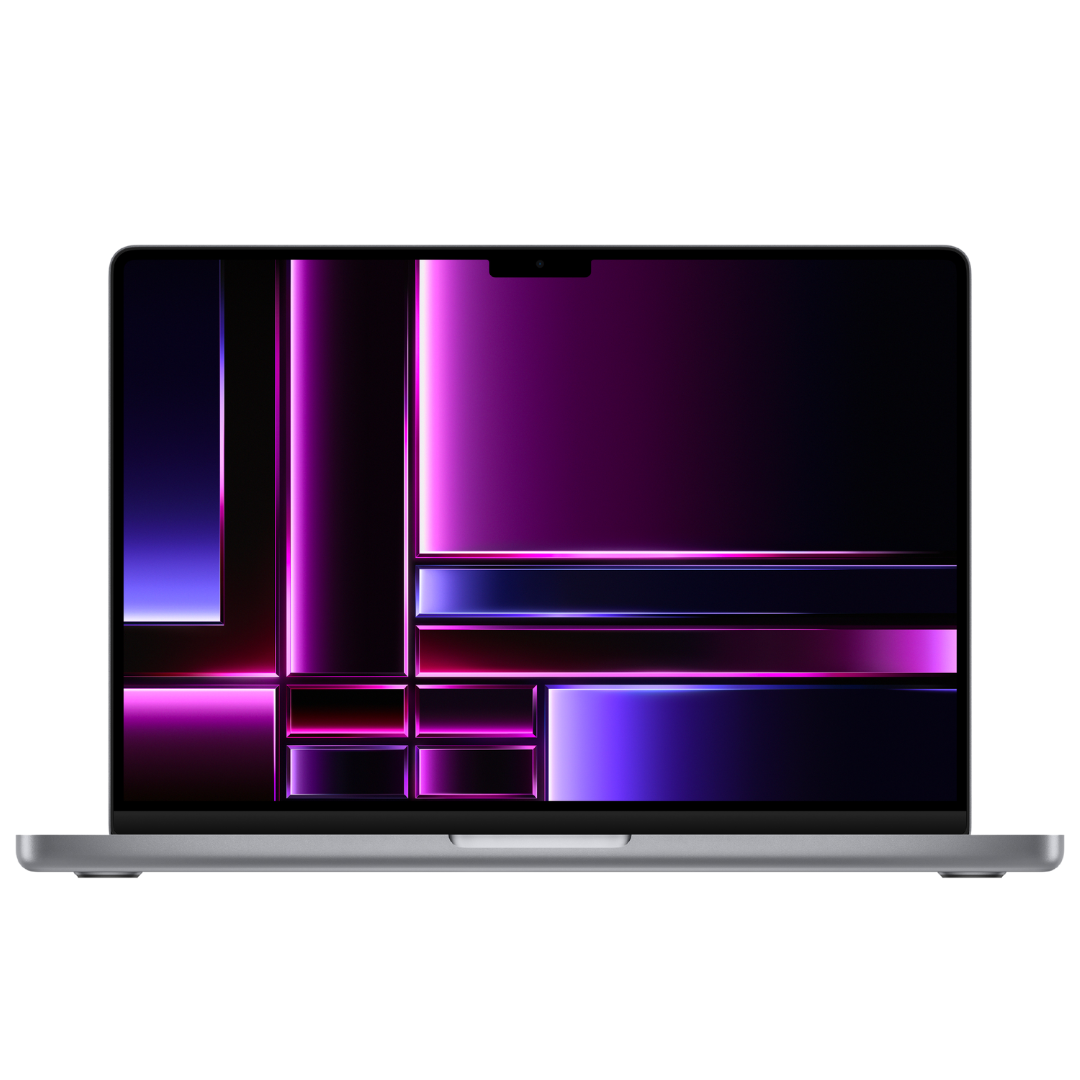
14.2-inch MacBook Pro (2023)
The latest 14.2-inch MacBook Pro (2023) ships with the new M2 Pro or M2 Max chipset. The device features up to a 12-core CPU, up to 38-core graphics processor, up to 96GB of unified memory, and 8TB of storage. It is one of the most powerful laptops on the market in 2023 and one of the best for professionals and power users.
-
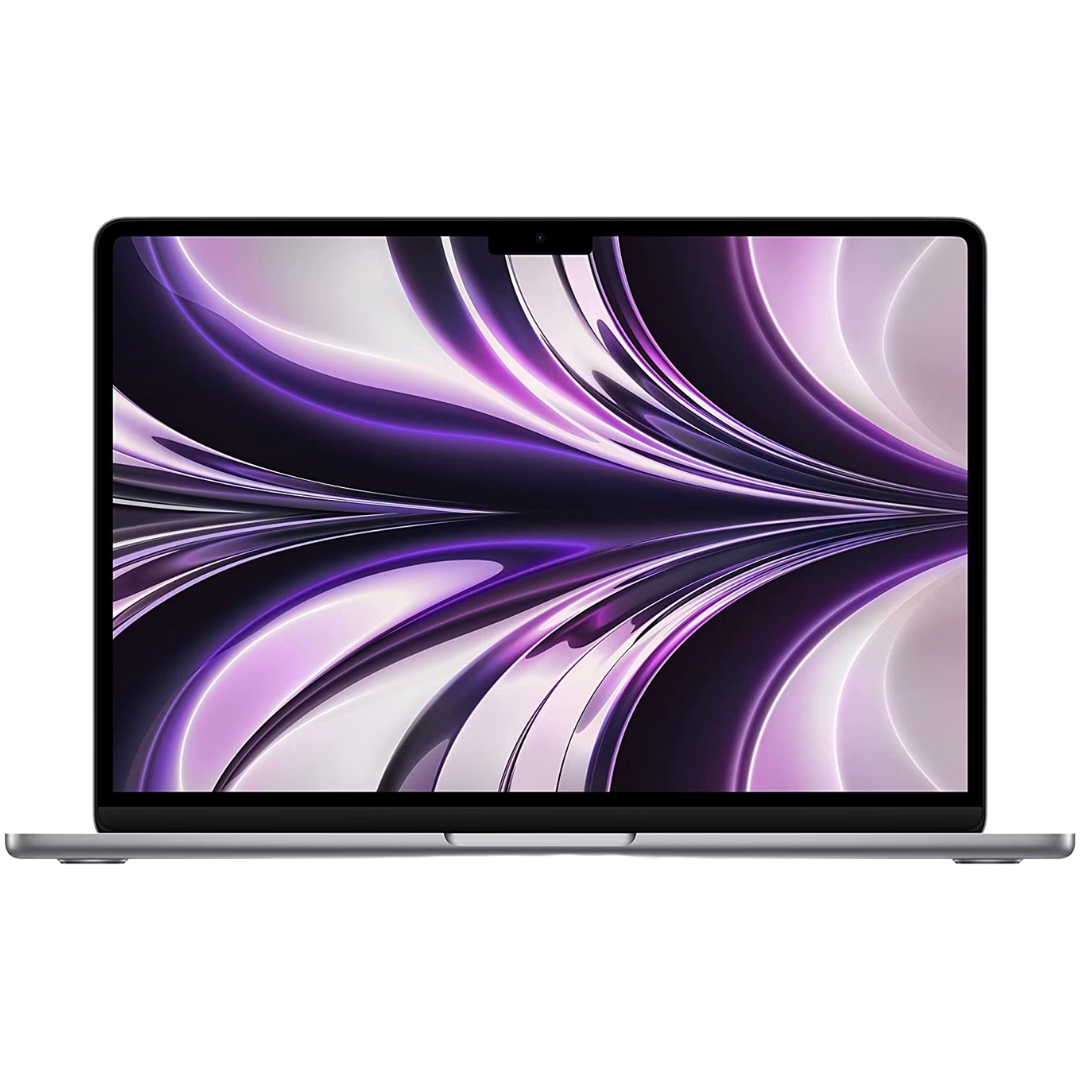
MacBook Air M2
The M2 MacBook Air offers much better performance than the M1 model. It comes with an all-new design similar to the new MacBook Pro models, fast internal memory, excellent battery life, and the Apple M2 chip that delivers all the performance you need to multitask, edit, and work on the go.
-
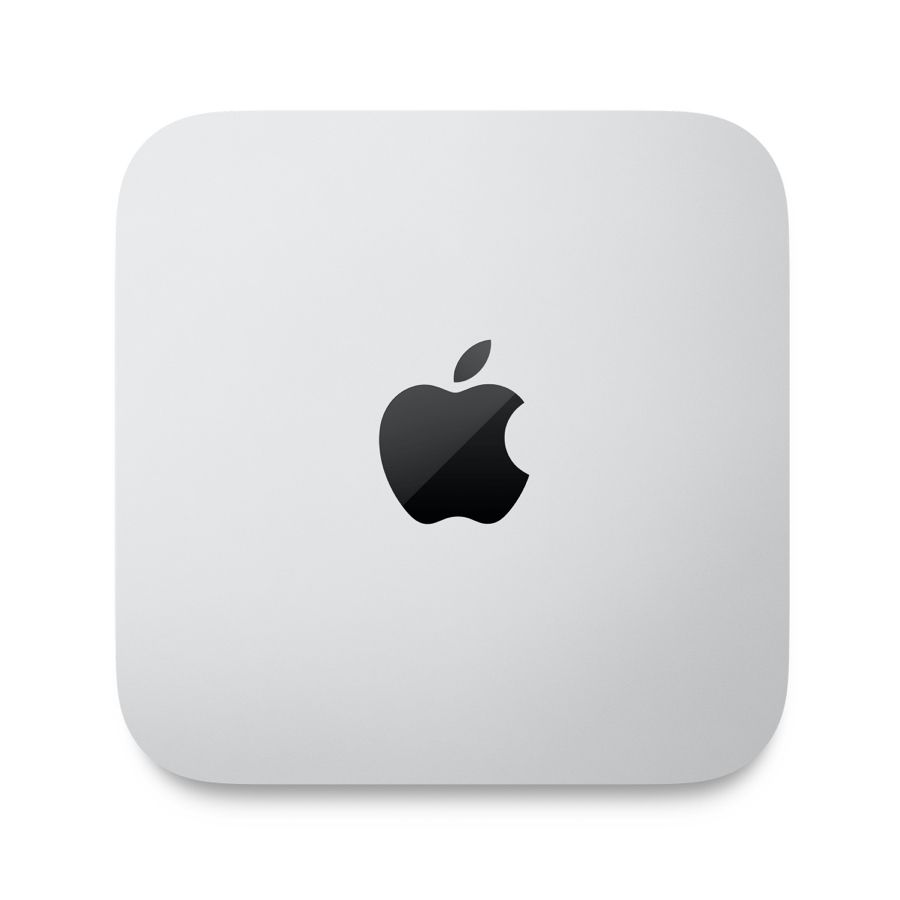
Mac mini with M2.0
Mac mini features an M2 chipset with an octa-core CPU with four high-performance, high-efficiency cores. It also features a 10-core graphics processor, up to 24GB of RAM with 100GB/s bandwidth, and a 16-core Neural Engine. It also comes with many ports from HDMI to SD card reader and more.


